OBS Scene Design: Building Stream Overlays That Look Professional
The difference between a stream that looks amateur and one that looks intentional usually isn't budget. It's restraint, hierarchy and a couple of design decisions made on purpose instead of by default. Here's how to make yours.
Start with what the viewer actually watches
Open a blank scene and be honest about where eyes go. On a gameplay stream, that's the game. On a Just Chatting or creative stream, it's your face and hands. Everything else — overlay, alerts, chat box, labels — is supporting cast. The most common beginner mistake is dressing the whole frame in graphics until the actual content is boxed into a small square. Give your main content room to breathe, then add elements around the edges only where they earn their place.
Pick three zones and stick to them
Professional-looking layouts are predictable. Decide on three zones and use them consistently: a corner for your webcam, a strip along the bottom or top for labels and now-playing info, and one dedicated spot where alerts appear. When new elements always land in the same place, the screen reads as designed rather than cluttered. Move things around every stream and it feels chaotic no matter how nice each piece looks.
Build a hierarchy with size and weight
Your channel name, your latest-follower label and your social handles are not equally important, so don't make them the same size. Pick one thing to be the clear anchor — usually your webcam — then step everything else down in scale and opacity. Small, semi-transparent labels sit quietly until someone looks for them. Big, opaque graphics shout. You want most of your overlay to whisper.
Make the text readable, always
Text on a stream competes with whatever's moving behind it. Two rules keep it legible. First, use a clean sans-serif at a size that survives being watched on a phone — if you can't read it at thumbnail size, it's too small or too thin. Second, give text a subtle backing: a soft drop shadow, a slight dark panel, or a thin outline. That one touch is the single biggest upgrade most beginner overlays need.
Constraint is the whole trick. One accent colour, one font, three zones — and suddenly it looks like someone designed it.
Commit to one accent colour
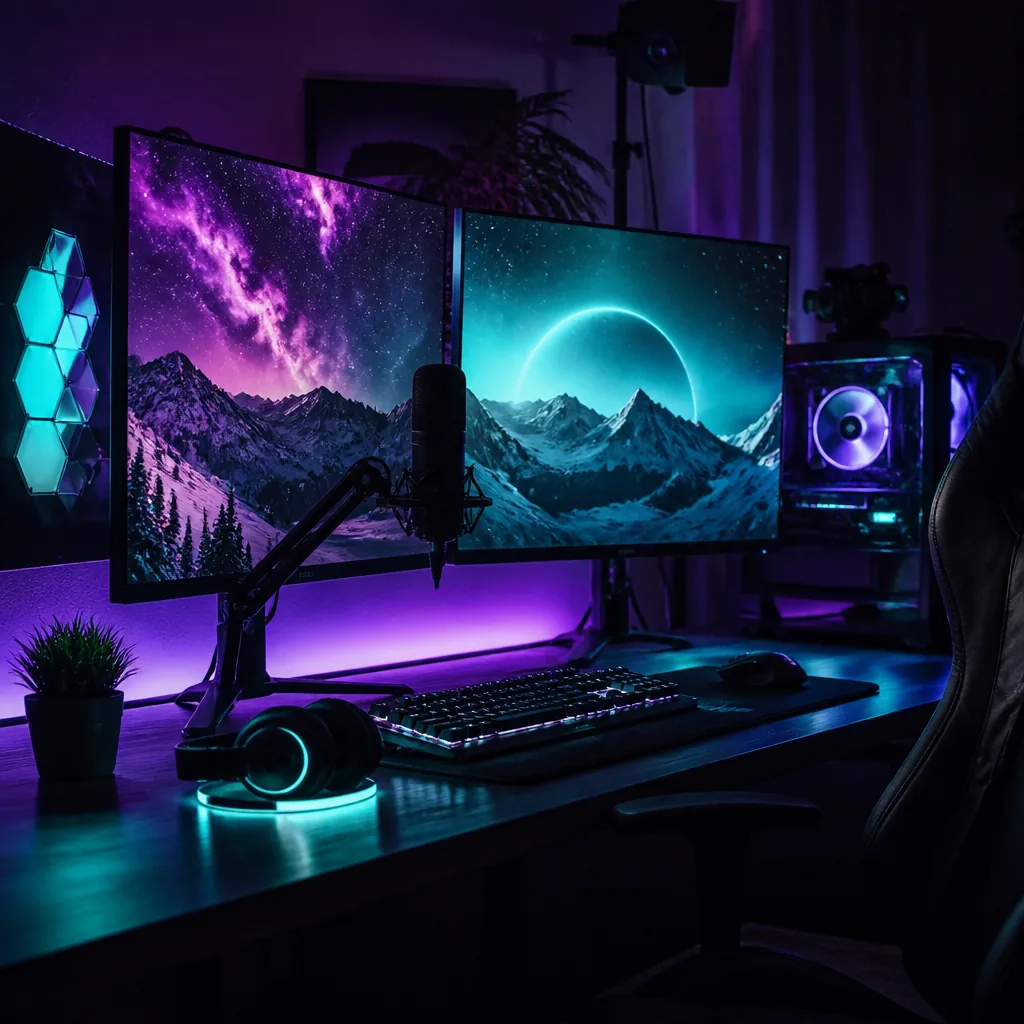
Choose a single accent colour and use it for your labels, your alert highlights and your webcam frame. That repetition is what ties a scene together and makes it feel like a brand instead of a pile of assets. Pull the colour from something you already own — your logo, your favourite game, your room's lighting — so it feels connected to you. Then resist adding a second and a third. Restraint reads as taste.
Design your scenes as a set
You'll want at least four scenes that share the same visual language: Starting soon, Live, Be right back, and Ending. Use the same font, the same accent, the same corner treatment across all of them so switching feels seamless. Add a short transition — a quick cut or a half-second fade, nothing flashy — so scene changes look deliberate. If you're still building your very first scenes, our first-stream checklist covers the setup basics before you decorate them.
Frame your webcam like it belongs
A raw, borderless webcam floating on gameplay almost always looks unfinished. Give it a simple frame in your accent colour, round the corners slightly, and align its edges to your other elements so nothing looks nudged by accident. If your camera background is messy, a soft blur or a plain backdrop does more for your production value than any overlay pack.
Test it where people watch
Finally, preview your scene at the size viewers actually see. Shrink the OBS preview down, or better, watch a test stream on your phone. Elements that looked balanced on a big editing monitor often turn out tiny or crowded on a small screen. Adjust for the phone, because that's where a lot of your audience will be.
In our Creator Launch Program we run a live overlay lab where you build all of this with a coach watching, then get feedback on how it reads on a real broadcast. Once your channel looks the part, read what actually grows it.